

Play Music Assistant Through Home Assistant
Say play a track in the kitchen to a Thalovant device and your Music Assistant plays it, using the Home Assistant link you already have.
Say “play Adam’s Song in the kitchen” to a Thalovant device, and your Music Assistant plays it on the kitchen speaker. Use the name of a track, album, artist or playlist you have: this route looks names up, so it does not play a whole genre.
You need Home Assistant linked to Thalovant with the Thalovant integration at version 0.5.0 or later (earlier versions don’t carry music), Music Assistant running at home with its username and password, and your speakers listed in Music Assistant. It takes about five minutes.
Add Music Assistant to Home Assistant
Section titled “Add Music Assistant to Home Assistant”-
Add the integration. In Home Assistant, go to Settings, then Devices & services, then Add integration. Type Music Assistant and select it.
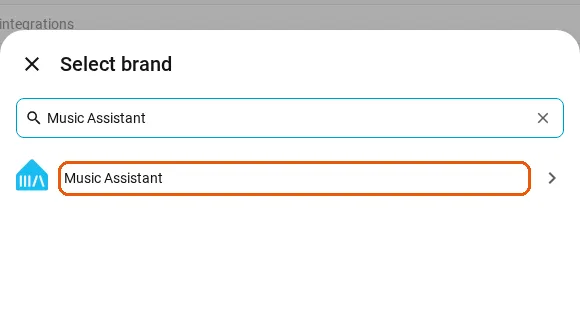
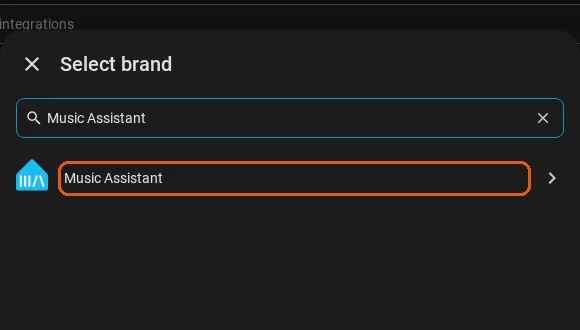
Type Music Assistant and select the result. -
Use your server if Home Assistant found it. Under Discovered you may see Music Assistant. Select Add and go to step 5.
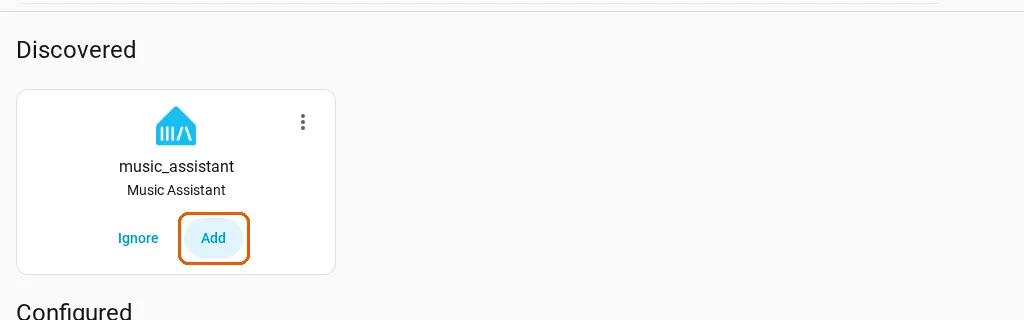
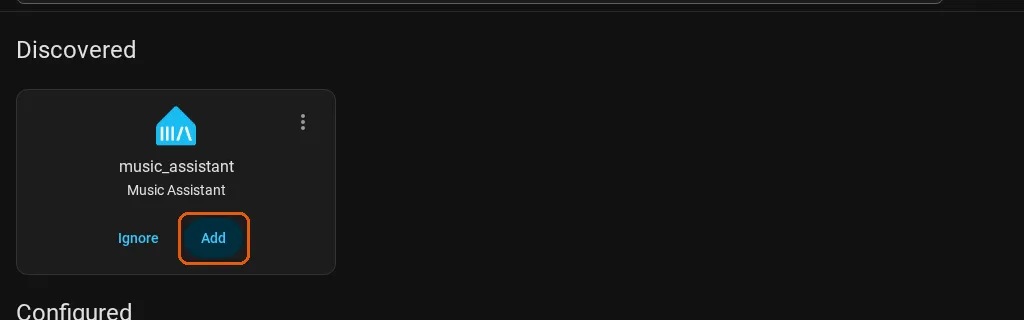
If Home Assistant already found your server, select Add. -
Type your server’s address. Use the address you open Music Assistant at, for example
http://homeserver:8095. Select Submit.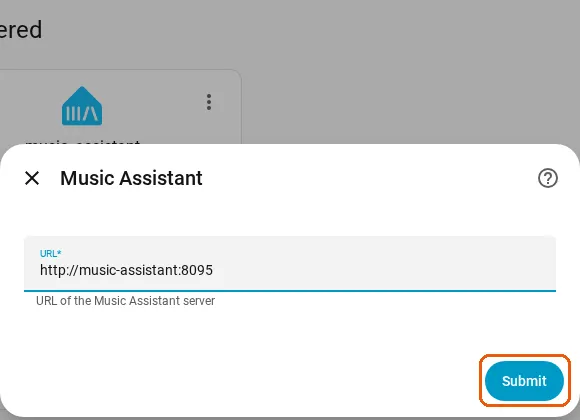
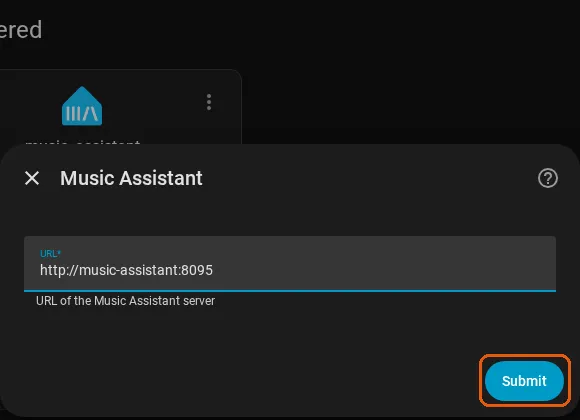
Type the address you open Music Assistant at, then select Submit. -
Select Open website. Music Assistant opens in a new tab.
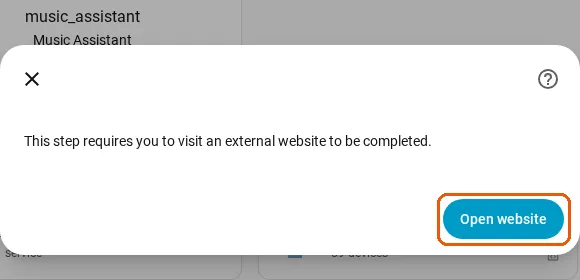
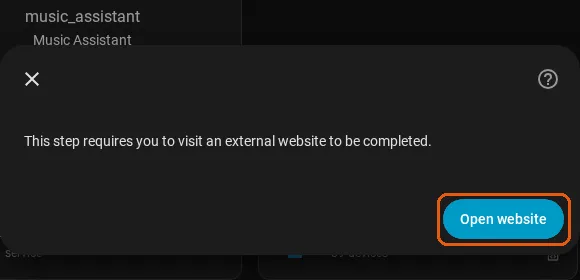
Open website opens Music Assistant in a new tab. -
Sign in to Music Assistant. Use your Music Assistant username and password, then select Sign In. The tab sends you back to Home Assistant. The first time, My Home Assistant asks for your Home Assistant’s address.
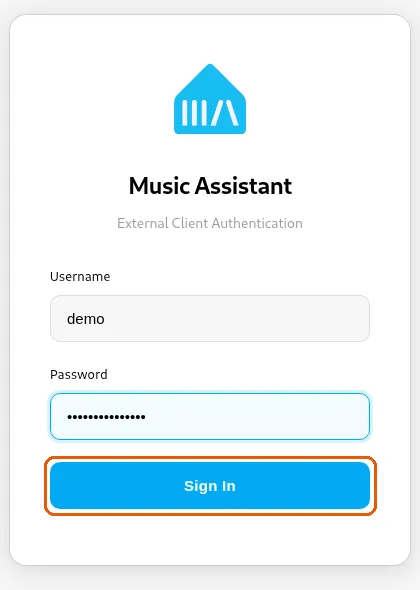
Sign in with your Music Assistant username and password. -
Give each speaker a room. Under Area, pick the room each speaker is in, then select the blue button at the bottom right: it reads Skip and finish in the picture below, before any area is chosen. This is what makes “in the kitchen” work.
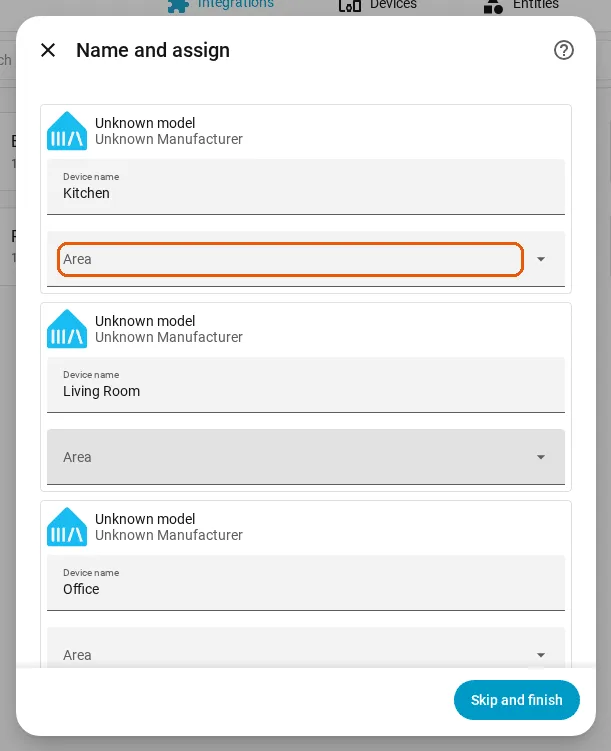
Give each speaker a room. 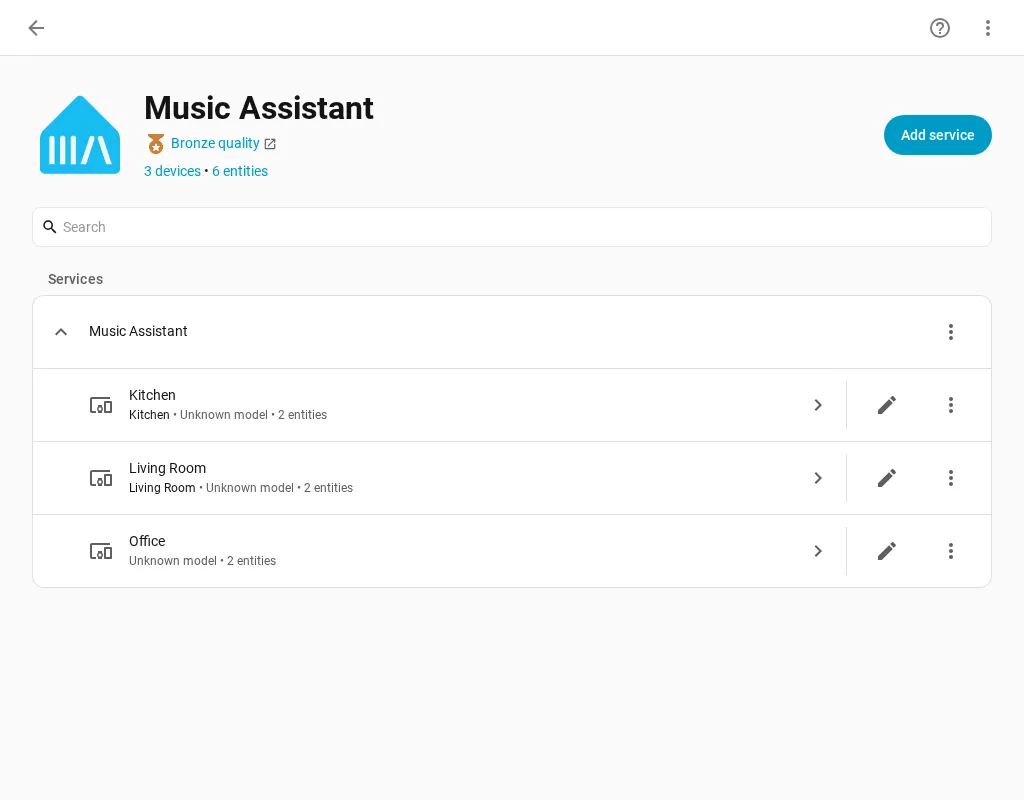
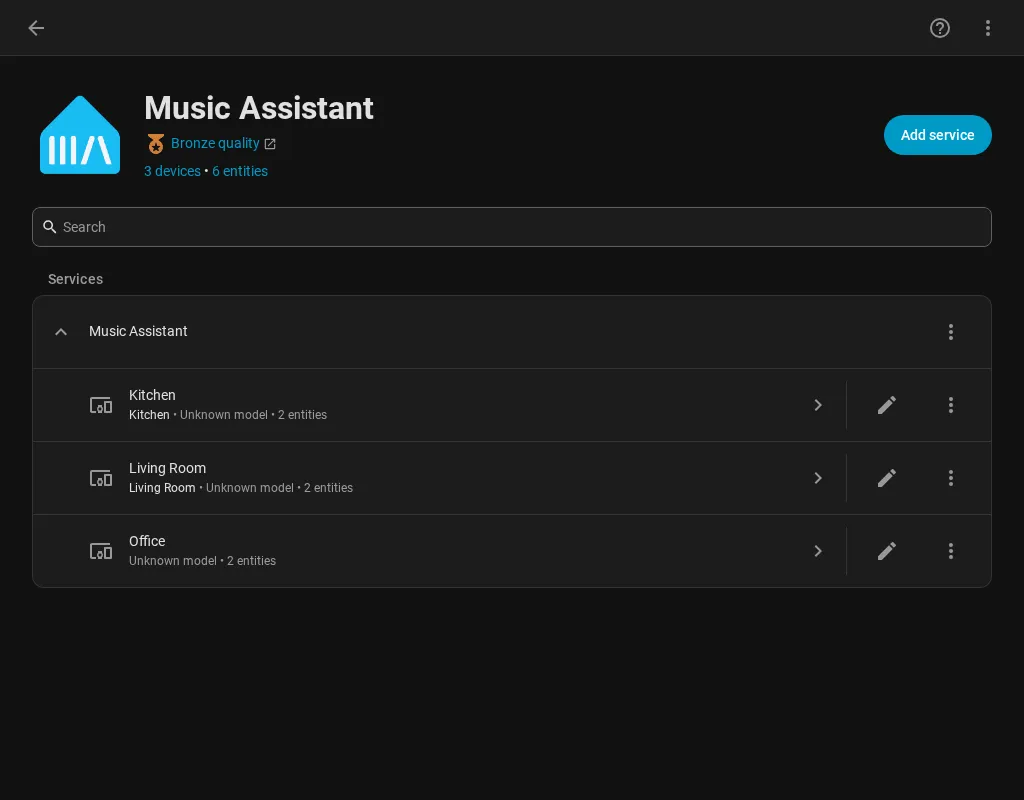
The speakers now show as devices. -
Check that Thalovant may use them. Open Settings, Voice assistants, Expose, and search for the speaker’s name. New speakers are allowed by default. If a speaker has no bubble, select Expose entities, tick the speaker, and select Expose.
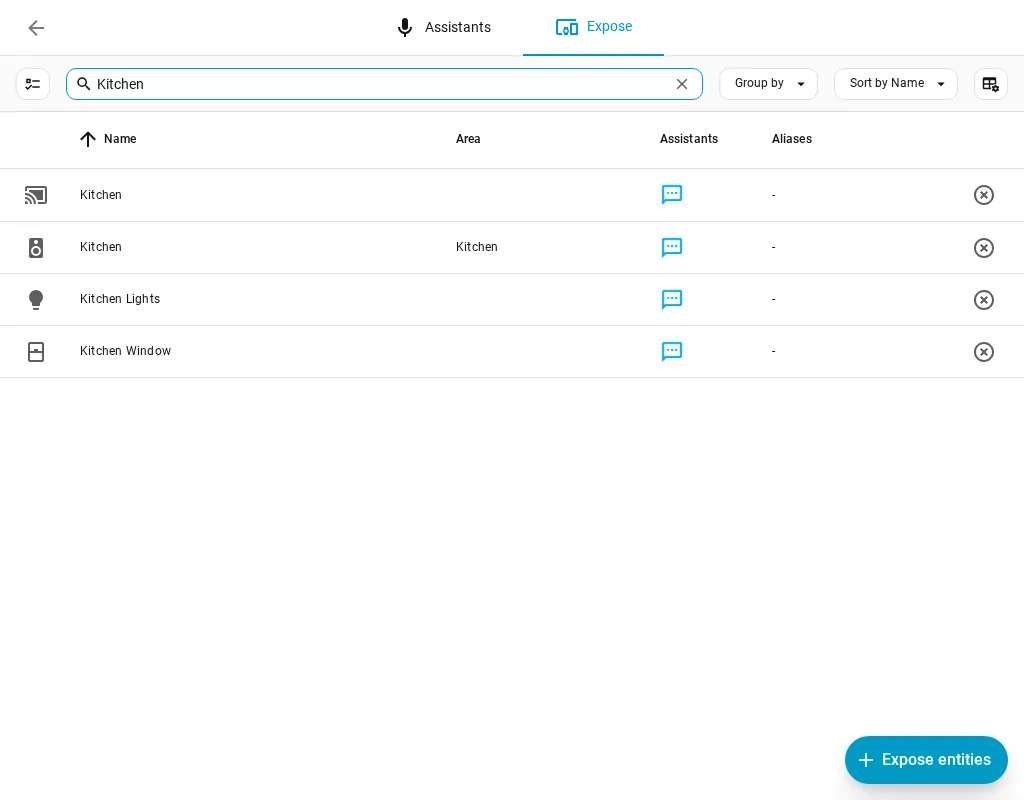
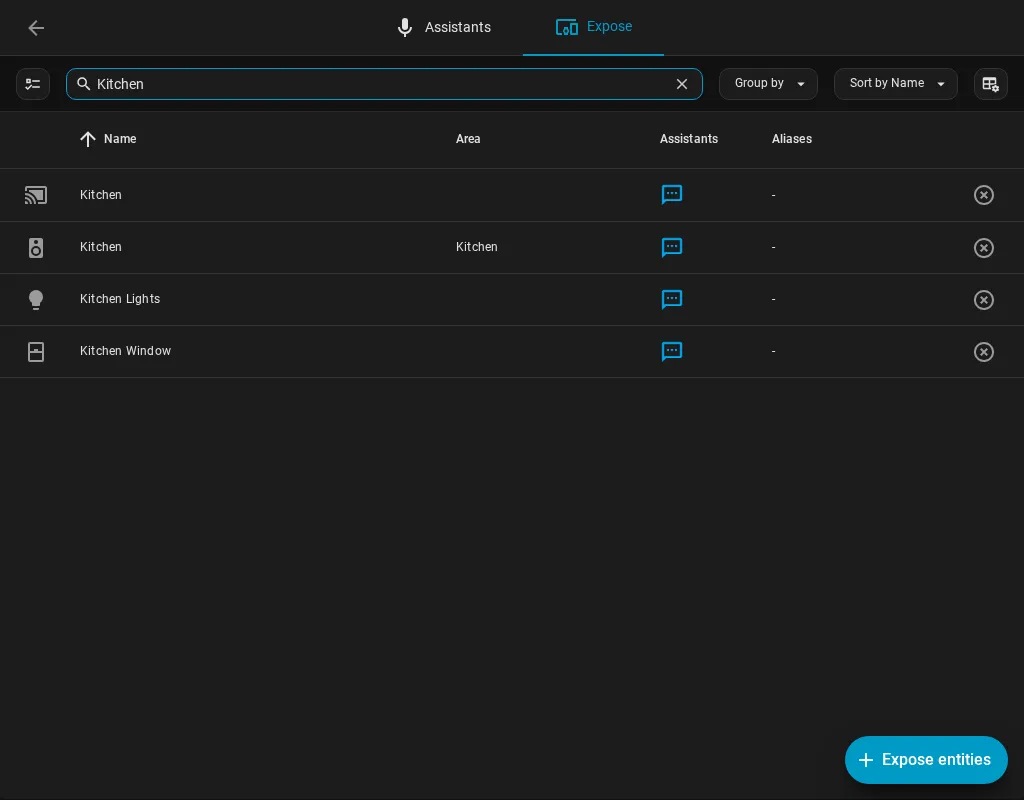
A blue speech bubble means Thalovant may use the speaker.
Check It Works
Section titled “Check It Works”Pick a track you own and say it with the room, for example: Play Adam’s Song in the kitchen.
The kitchen speaker starts. Thalovant answers with what it queued, for example: Playing Adam’s Song by blink-182 on Kitchen.
If It Doesn’t Work
Section titled “If It Doesn’t Work”If you hear “I couldn’t find Adam’s Song in your music.” (with the name you said), the title isn’t in Music Assistant or its services. Try an artist you know is there.
If the wrong speaker plays, two devices share a name, for example a Chromecast and a Music Assistant speaker. Thalovant only uses the Music Assistant one, so rename the other in Home Assistant.
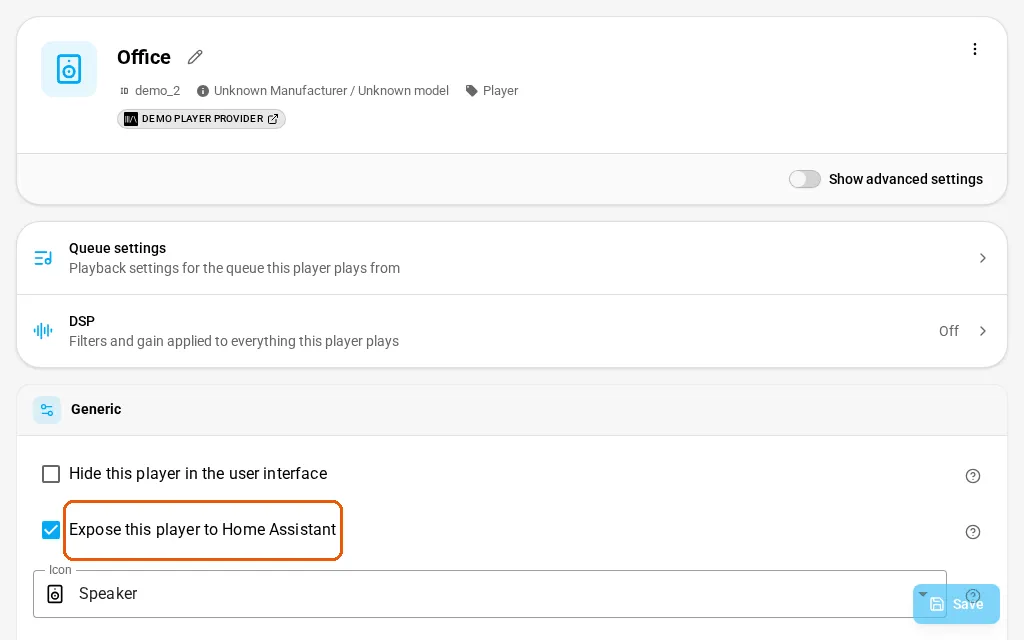
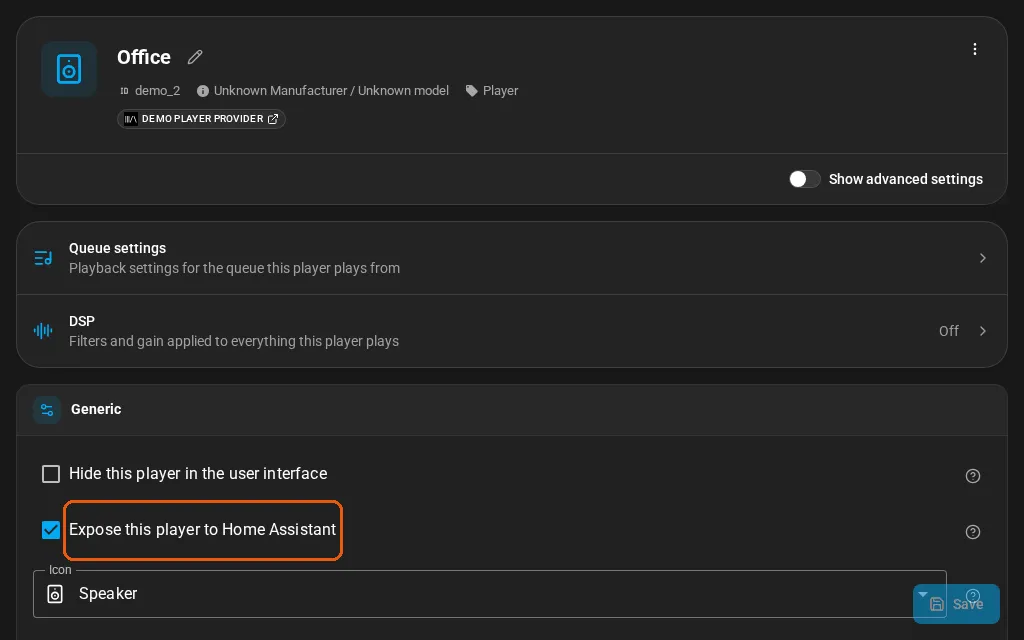
If a speaker is missing, open its settings in Music Assistant and tick Expose this player to Home Assistant.
To play music without Home Assistant, see Play Music Assistant Without Home Assistant. To make a Thalovant speaker play on its own, see Play Music Assistant on a Thalovant Speaker. The Music Assistant page explains what each request can do.