
API Tokens
Create scoped, expiring API tokens for scripts and agents, and approve device sign-in requests on the activate page.
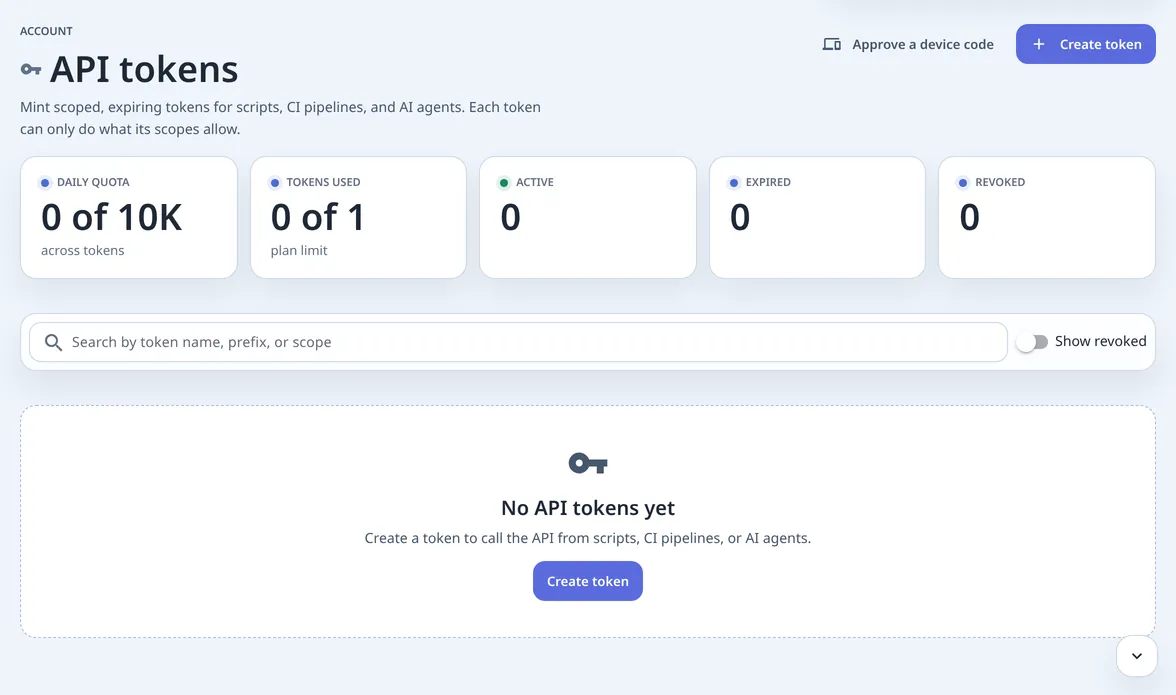
Use this page to create an API token for scripts, CI pipelines, and AI agents, or to approve a device sign-in request that a script or SDK started.
An API token calls the API without your password. Each token can only do what its scopes allow, expires on the date you pick, and can be revoked at any time.
Two Things To Have Ready
Section titled “Two Things To Have Ready”Confirm:
- you can sign in to the dashboard, including two-step verification when enabled;
- you know which scripts or agents will use the token, so you can pick the narrowest scopes.
Every plan can create API tokens. Your plan decides which scopes you can grant and how many tokens can be active at once: on the Free plan you get one active token limited to reading hubs, managing clients, and your memory, and the picker shows the rest as locked with an upgrade link. Revoking a token frees its slot right away. The plan table lists every plan.
Create An API Token
Section titled “Create An API Token”- Open API tokens. It’s in the account section of the dashboard navigation.
- Choose Create token. Give it a clear Token name, such as “CI deploy script”.
- Pick scopes. Check only the access the script needs. Fewer scopes means less risk if the token leaks.
- Pick an expiration. Choose 30, 90, or 365 days, or set a custom date. Shorter is safer.
- Copy the token from “Copy your token now”. You won’t see this token again. Store it in a secret manager or CI secret, then choose I saved my token.
The token starts with tvpat_. The table keeps only that short prefix, so the full secret exists only in your copy.
Pick The Right Scopes
Section titled “Pick The Right Scopes”| Scope | What it allows |
|---|---|
hubs:read | See your hubs. |
hubs:write | Create and update hubs. |
hubs:preview | Preview hub responses. |
hubs:inspect | Inspect hub runtime detail. |
hubs:runtime-inspect | Inspect the runtime inventory of a public hub you do not own. |
clients:read | See client connections. |
clients:write | Create client connections. |
acls:read | See access rules. |
acls:write | Manage access rules. |
memory:read | Read your saved memory. Every plan. |
memory:write | Write your saved memory. Every plan; Free keeps one memory item. |
For an AI agent using the MCP server, the usual set is hubs:read, clients:write, memory:read, and memory:write. Every plan, including Free, can grant that set. On Free the agent can save only one memory item.
Scopes decide which actions a token can take. To limit which hubs it can act on, see Restrict A Token To Specific Hubs.
Restrict A Token To Specific Hubs
Section titled “Restrict A Token To Specific Hubs”By default a token can act on all your hubs. When you create a token you can limit it to specific hubs instead: pick the hubs it may use, or leave the selection empty to keep all of them. You can only choose hubs you own, and the option is available on every plan because it only narrows access.
A restricted token works on its chosen hubs and no others. On those hubs it can still do the hub-targeted work its scopes allow:
- read, update, release, and rate the hub, and check its runtime capabilities;
- manage that hub’s access rules;
- read and write that hub’s memory.
When it lists hubs it sees only the chosen ones, and it can’t create new hubs. Work that isn’t tied to a hub, such as your personal or workspace memory, still follows the token’s scopes as before: the hub restriction filters which hubs the token reaches, it doesn’t replace what its scopes allow.
The tokens table shows each token’s hubs, so you can tell a restricted token from one that reaches every hub.
Watch And Revoke Tokens
Section titled “Watch And Revoke Tokens”The token table shows Name, Token, Scopes, Created, Expires, Last used, Requests (24h), and Status for each token. Status is Active, Expired, or Revoked; use Show revoked to include revoked rows.
Last used and Requests (24h) update as the token authenticates (within about half a minute), so a token that should be idle but shows recent use deserves a look.
Your plan sets both a request rate and call quotas for each token. Going over any of them returns HTTP 429 with a Retry-After header telling you when to try again — the next minute for the rate, or the next UTC day or month for a quota. The tokens table shows today’s usage against your daily quota.
Tokens by Plan
Section titled “Tokens by Plan”The Home line lists every standard scope explicitly. Work plans allow every standard scope by default. A dash in the rate column means no per-minute cap.
| Plan | Active tokens | Scopes | Rate | Per day | Per month |
|---|---|---|---|---|---|
| Free | 1 | hubs:read, clients:read, clients:write, memory:read, memory:write | 60/min | 10,000 | 200,000 |
| Home | 5 | Every standard scope | 120/min | 20,000 | 400,000 |
| Family | 10 | Every standard scope | 240/min | 60,000 | 1,200,000 |
| Workspace | 100 | Every standard scope | — | 100,000 | 2,000,000 |
| Business, Civic, and Pilot | 100 | Every standard scope | — | 1,000,000 | 20,000,000 |
| Site Pack, Municipality, and Private Edge | Shown in Billing | Every standard scope | Shown in Billing | Shown in Billing | Shown in Billing |
| Enterprise | Custom | Every standard scope | Custom | Custom | Custom |
The standard scopes are the eleven in Pick The Right Scopes. For what the Home line covers, see Home Plan Developers.
Older plans that are no longer sold keep the token limits they had. A plan that Thalovant sets on an account directly shows its own limits on this page and in Billing.
To revoke, choose the Revoke token action on the row and confirm. Anything still using that token stops working immediately, and revocation can’t be undone. If you lose a token secret, revoke the old token and create a new one; the secret can’t be shown again.
Approve A Device Sign-In
Section titled “Approve A Device Sign-In”When a script or SDK signs in without a password, it prints a short code like GHXK-PQRS and the address https://dash.thalovant.com/activate.
- Open the activate page. Sign in first if asked, with your usual method, including Google sign-in or your authenticator code.
- Enter the device code. The page looks it up as soon as the code is complete; lowercase letters and a missing dash are fine. Codes expire after about 15 minutes.
- Review the request. The page shows which device or script wants access to your account and lists what it will be able to do.
- Choose Approve access or Deny. Approve only requests you started yourself.
- Return to the device. After Access approved, the device finishes signing in on its own.
Approving mints an API token scoped to only the access listed on the approval page. It appears in your token table like any other token, so you can watch its last use and revoke it later. Your plan’s scope and token limits apply here too: the page tells you when a request asks for scopes your plan can’t grant, or when you must revoke an existing token first.
Done When
Section titled “Done When”The task is done when:
- the token secret is stored safely and the row shows Active;
- the script or agent makes one successful call and Last used updates;
- for a device sign-in, the device reports it’s signed in after Access approved.
If A Scope Is Locked Or A Token Fails
Section titled “If A Scope Is Locked Or A Token Fails”| Symptom | First check |
|---|---|
| A scope is locked in the picker | Your plan does not include it. Open Billing to upgrade, or pick a narrower scope. |
| Your plan’s API token limit is reached | Revoke an existing token to free the slot, or upgrade the plan for more active tokens. |
| Code not found or expired on the activate page | Ask the device or script for a fresh code and enter it within 15 minutes. |
| A token suddenly stops working | Check its Status; expired and revoked tokens are rejected. |
| You lost the token secret | Create a new token, update the script, then revoke the old token. |
| A call fails with a scope error | Create a new token that includes the scope the call needs. |
| A restricted token can’t act on a hub | That hub is not in the token’s allowed list, or the token is restricted and cannot create hubs. Use a token that includes the hub, or one with no hub restriction. |
Calls return 429 with token_rate_limited | The token hit its plan’s per-minute rate limit; wait for the Retry-After interval or upgrade the plan. |
Calls return 429 with token_quota_exceeded | The token used up its daily or monthly call quota; the error names which, and Retry-After points to the next UTC day or month. |