
Access rules
Understand how access rules link clients to hubs and keep access clear.
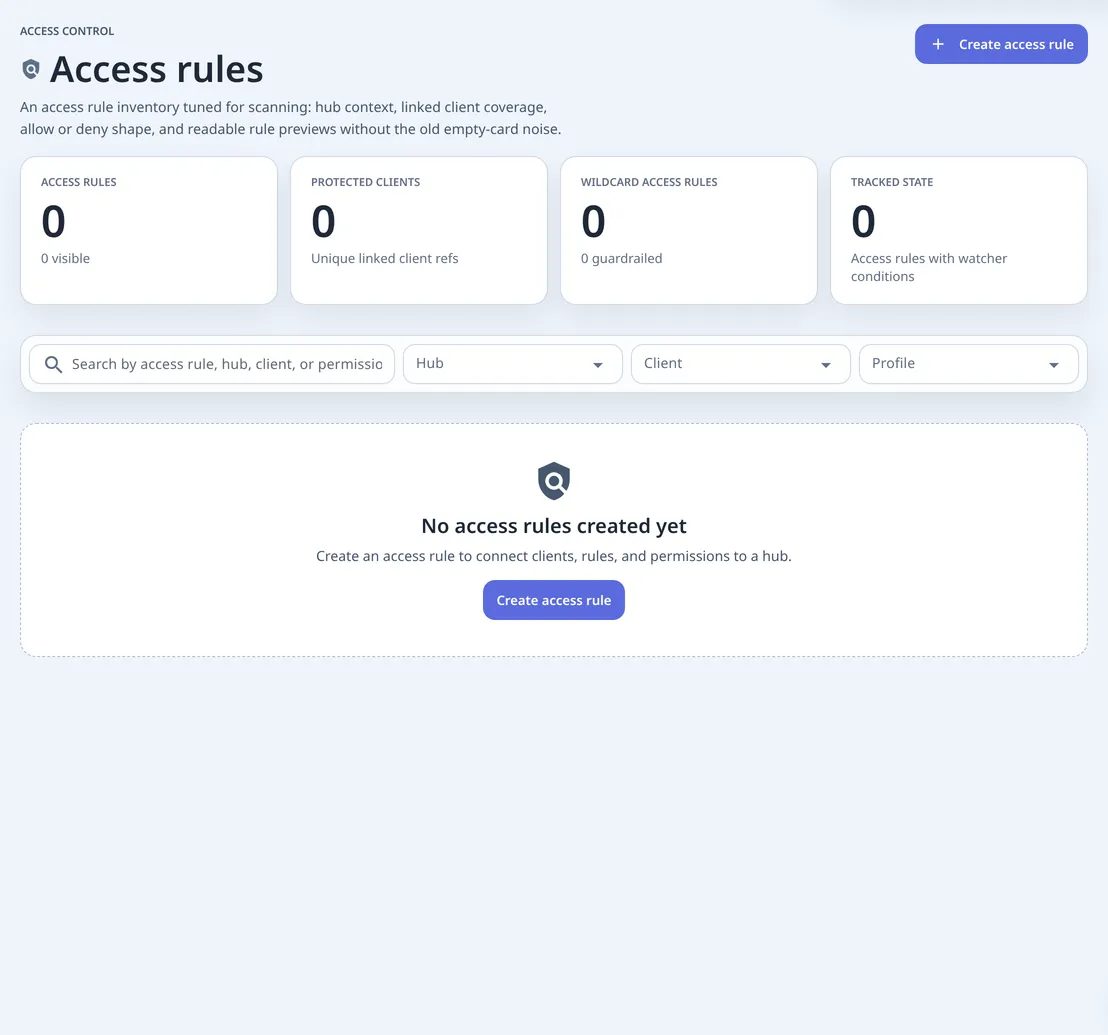
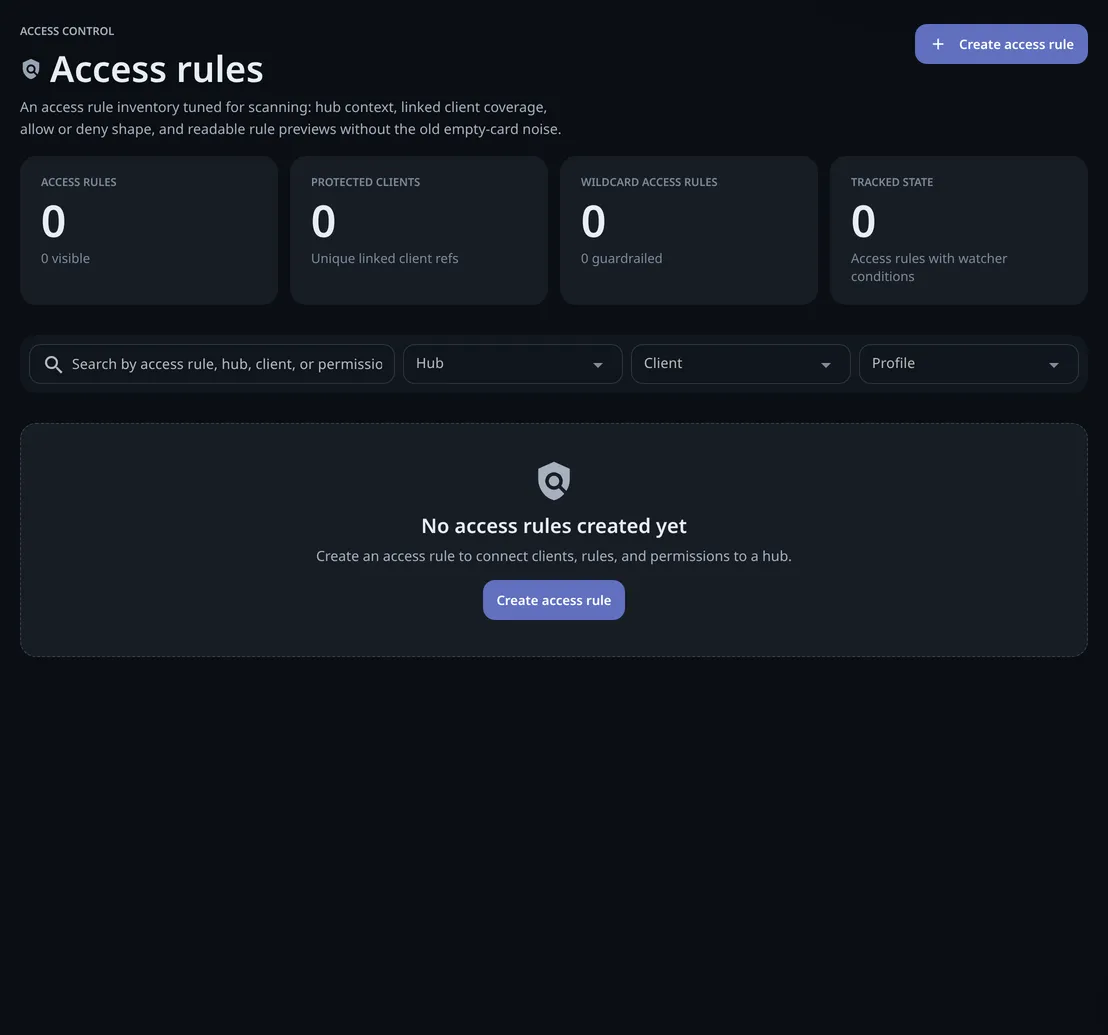
Access rules decide what a client can and can’t do on a hub.
The hub answers where does the client connect? The client answers what is connecting? Access rules answer what is allowed?
Create access rules after the client exists and the hub is clear. Use Topology later to confirm the connected client behaves as expected.
What A Rule Is
Section titled “What A Rule Is”An access rule is what a client may do on a hub, written down. You create it after the client exists, because the rule names the client. It holds the hub, the clients it covers, what’s allowed, what’s blocked, and a note saying why. Start narrow, one purpose per rule, and treat “everything” as the exception you have to justify.
What An Access Rule Contains
Section titled “What An Access Rule Contains”The editor gives you two lists and some context:
- the hub it applies to;
- the linked clients that receive it;
- Allow rules — what the client may do;
- Deny rules — what it may not, whatever the allow list says;
- a name and a description, so a teammate can tell later why this exists.
Three Shapes That Come Up
Section titled “Three Shapes That Come Up”These are habits, not buttons. The editor is the same in each case; what changes is how much you put in the allow list.
Named actions allows only what you list. This is the right default, and it is what most clients should have.
Named actions, plus denies adds a deny list on top. A deny always wins, so this is how you keep one capability out of reach of a client that otherwise needs a broad allowance. It suits anything public-facing.
Wide open allows everything. Use it only when you trust the client’s purpose and you’ve decided the risk is acceptable — and write that decision into the description, because the next person to read it will ask.
How To Read An Access Rule
Section titled “How To Read An Access Rule”Read access rules from top to bottom:
- Hub: the place these access rules apply.
- Linked clients: the clients that receive these access rules.
- Allowed actions: what those clients can do.
- Blocked actions: what stays blocked.
- Notes: why these access rules exist.
If the client name and access rules name don’t clearly explain the relationship, rename or describe them before adding more rules.
Create Access Rules
Section titled “Create Access Rules”Create access rules after the client exists. That makes the relationship easier to read.
- Open Access rules. Select Create.
- Choose a hub. Access rules always apply to one hub.
- Name the access rules. Use a purpose-based name, such as
frontdesk-questions-only. - Link clients. Select the clients that should receive this access.
- Choose the shape. Use narrow access for most clients.
- Review allowed and blocked actions. Allow only what is needed and block risky actions.
Before saving, read the access rules sentence in plain language:
These clients can do these actions on this hub, and these actions stay blocked.
If that sentence is hard to say, split the access rules or rename them before adding more connections.
Public Hub Safety Defaults
Section titled “Public Hub Safety Defaults”For public hub access, Thalovant favors narrow defaults:
- no wider message sending;
- no escalation, which means no higher-level requests;
- no propagation, which means no passing work along;
- no full-control access;
- normal question access only.
That keeps public clients useful while limiting accidental wide control.
When Something Is Denied
Section titled “When Something Is Denied”Permission denied and access blocked both mean the same thing: this client asked for something its access rule doesn’t allow. Read the deny list first (a deny beats an allow), then the allow list, then check you’re looking at the rule the client is actually linked to.
Widening the rule is the last step, not the first. If somebody says a client has too much access, the fix is usually to split it into two narrower rules rather than to add another deny.
Four Patterns Worth Copying
Section titled “Four Patterns Worth Copying”Before you widen an access rule because something was denied, check whether one of these already describes what the client is for. Most clients fit one of them.
| Pattern | Use it when | What it allows |
|---|---|---|
| Question-only | A user-facing client should ask normal questions. | Questions and status, with wider controls blocked. |
| Observer | A client only needs health or status. | Read-only access. |
| Skill helper | A client helps Thalovant see available skills. | Skill sharing plus only the small reads it needs. |
| Temporary task | A trusted client performs one narrow job. | Specific actions with a clear description. |
Live Skill Suggestions
Section titled “Live Skill Suggestions”When a hub has a client sharing live skill information, the access rules builder can show available skills. This helps you block exact items without guessing names.
If live suggestions aren’t available yet, access rules still work. Start simple, then return later when suggestions appear.
An Access Rule Is Ready When
Section titled “An Access Rule Is Ready When”An access rule is ready when:
- the name explains the purpose;
- the linked clients all need the same kind of access;
- allowed actions are specific;
- wider controls are blocked unless there’s a written reason;
- notes explain why the access exists;
- a teammate could read the access rules sentence without guessing.