
Live
The client is connected and has recent signal.
See which clients are live, stale, or missing on each hub, and find out why one is not showing or not connecting.
The sidebar calls it Topology; the page header says Network topology. Either way it answers one question: which of my clients are actually talking to their hub right now?
It’s worth opening once a client has connected at least once. Before that there’s nothing to see.
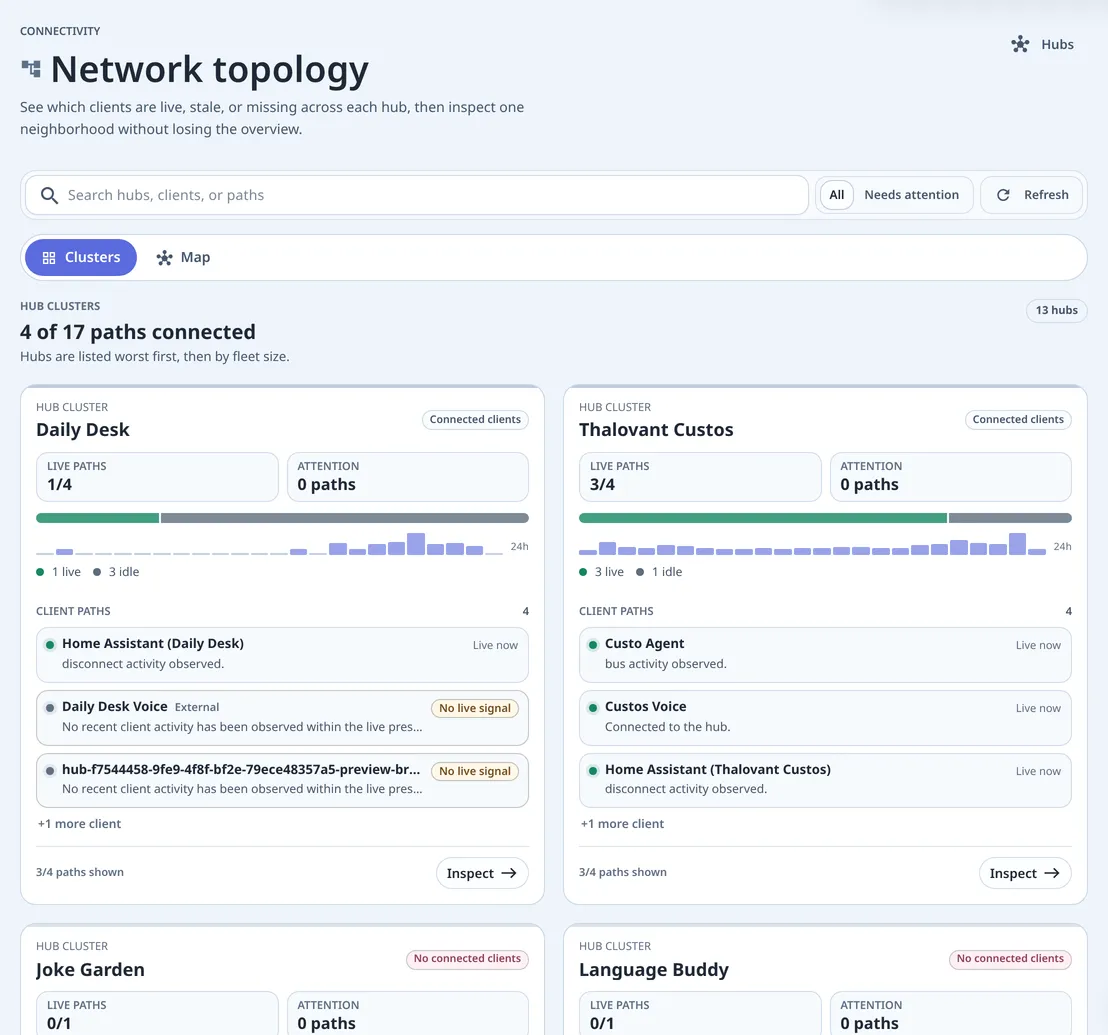
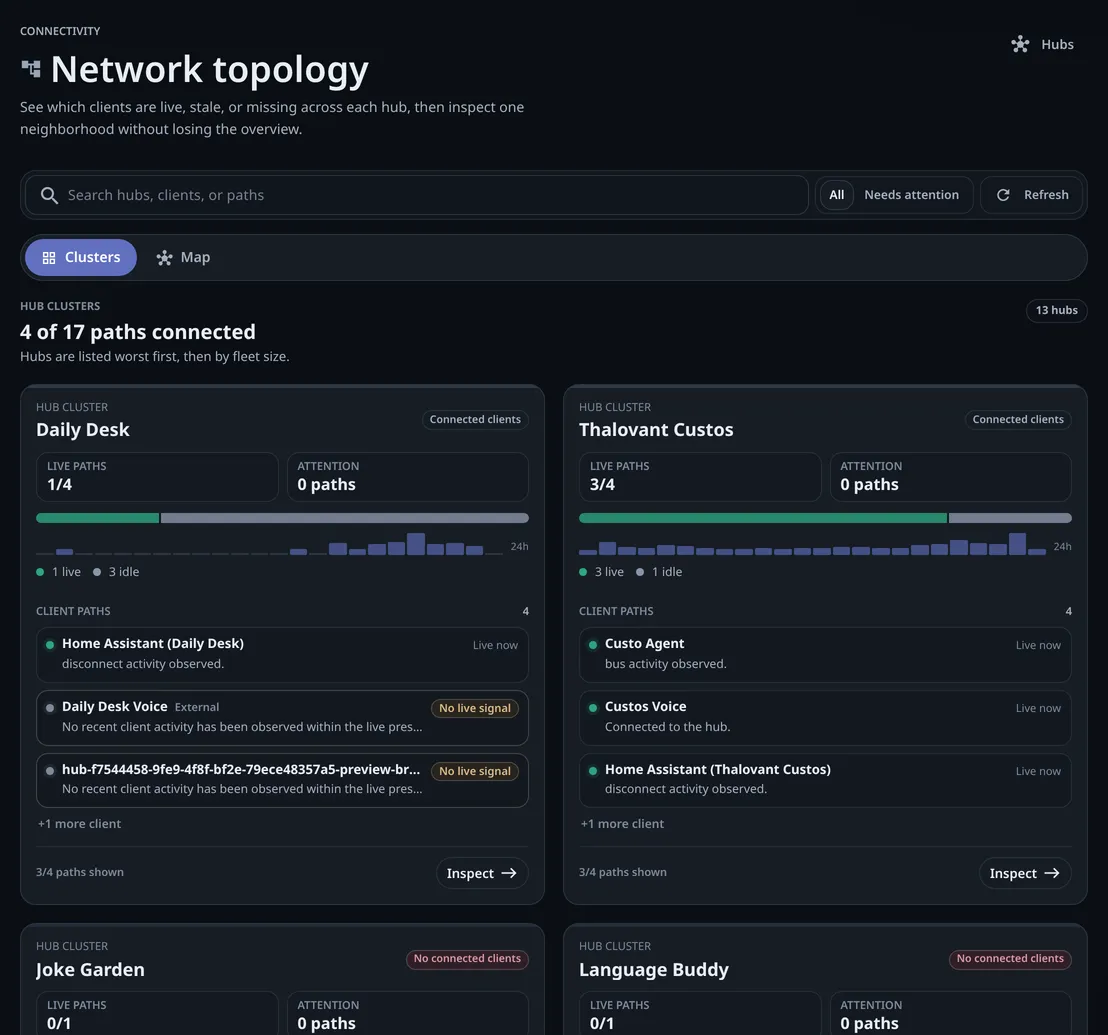
Topology shows which clients are connected to which hub right now. Open it when a client is missing, quiet, or behaving unlike the others. It counts paths, one client’s connection to one hub, not clients. No live signal means the client is set up but nothing recent has been seen on that path. Topology doesn’t fix anything; it tells you whether to open Connections, Access rules, or Hubs.
The page counts paths, one client’s connection to one hub, rather than counting clients. A headline at the top says how many of them are connected, for example 0 of 13 paths connected.
Underneath, each hub is a cluster card carrying:
| On the card | What it tells you |
|---|---|
| Live paths | Connected now, out of the total for that hub. |
| Attention | Paths with something wrong, as opposed to merely idle. |
| A 24-hour strip | When that hub last had traffic. |
| Client paths | One row per client, each with its own state. |
| Inspect | Opens that one hub without losing the overview. |
Hubs are listed worst first, then by fleet size, so the one that needs you is at the top.
Live
The client is connected and has recent signal.
Idle
Connected, with nothing happening. Normal for most of the day.
No live signal
The client exists and is set up, but nothing recent has been observed on this path.
No connected clients
The hub has client paths defined and none of them is connected.
If the page is empty, or a hub or client is not showing where you expected it, the filter is the usual culprit rather than the setup. A client that’s not showing at all has usually not been attached to this hub.