
Name
The friendly label you use to recognize the hub.
A hub is a place that clients connect to. Think of it like the destination for an app, device, or experience.
A hub is not the same thing as a client. The hub is the place. The client is what connects to it. Permissions decide what that client can do after it connects.
Use this page when a hub is missing, unavailable, not visible, or hard to recognize in Dashboard, Clients, Permissions, or Live Map.
For owned hub creation, use Create a Hub. For shared discovery, use Public Hubs. For hub update questions, use Manage Updates. For connection issues, move next to Clients or Live Map.
| Question | Simple answer |
|---|---|
| What is a hub? | The destination a client connects to. |
| Who creates it? | The workspace, when the plan allows owned hubs. Check Billing for the current limit. |
| What does it use? | A skill set and runtime defaults. |
| How does it handle bursts? | Standard capacity stays fixed; plan-enabled Autoscaling adds complete workers. |
| What connects to it? | Clients. |
| What keeps it safe? | Narrow permissions for each client. |
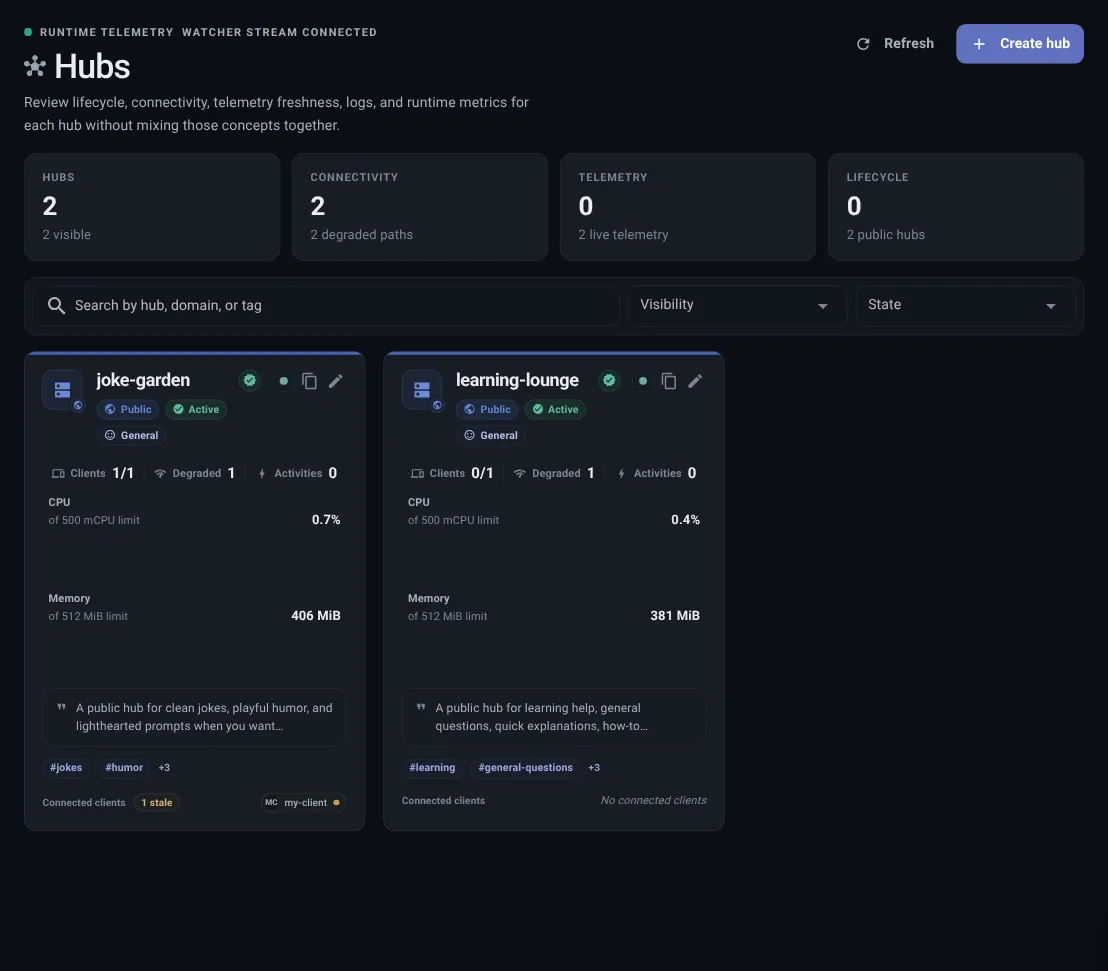
Name
The friendly label you use to recognize the hub.
Address
The hub address clients use when they connect.
Public or private
Private hubs stay inside the workspace. Public hubs appear in discovery.
Skills
The abilities available to the hub.
Runtime
The shared working setup behind the hub’s skill set.
Many other items point back to a hub:
Because hubs sit in the middle, choose the hub before creating clients and permissions.
Private hubs are for your workspace. Use them when the hub should only be available inside your account area.
Public hubs are for discovery. They can publish a description, tags, audience guidance, age guidance, quality label, and starter prompts. Public hubs are useful for demos, shared experiences, and Free-path exploration.
An active public hub can also offer browser preview. Changing a private hub to public starts a normal hub refresh while the preview becomes ready. The hub does not report ready preview access until that refresh finishes. Changing it back to private removes preview access and its dedicated credentials.
If preview configuration is unavailable, the hub reports attention instead of silently publishing a broken preview. Private, inactive, missing, or invalid visibility never enables public preview.
When you use a public hub, you do not manage that hub’s runtime. You create your own client for the public hub and keep permissions narrow.
When you create your own hub, you choose whether it uses the workspace default skill set or a separate skill set. Runtime config belongs to the skill set, not the client.
| Question | Where to look |
|---|---|
| Where do clients connect? | Hub |
| What can the hub do? | Skills |
| What shared defaults do those skills use? | Runtime |
| Which clients may use the hub? | Permissions |
Capacity controls how the hub runs; it does not change the hub address or its client identities.
Team includes one Autoscaling hub with a maximum of eight workers. Enterprise capacity is contract-defined, with a platform maximum of 32 workers per hub. Existing hubs remain Standard unless an authorized workspace member explicitly changes the capacity profile.
Hub cards and inspectors show:
Hub updates move the hub listener and preview bridge to the saved release target. The Hubs page can show Hub update available, Update requested, or a ready state after sync finishes.
If the hub says the backing runtime needs attention, update or fix the runtime first. Then return to the hub update.
Use Manage Updates when you need to decide whether to update one hub, apply a saved target to many hubs, or check the release policy before creating more hubs.
When you publish a hub publicly, make the listing useful:
assistant, education, or support;Good public hub listings make it obvious what the hub is for before anyone creates a client.
Create another hub when you need a different public/private setting, different skills, a different address, or a separate group of clients and permissions. Keep one hub when the same setup still makes sense.
A hub is ready for a first client when: