Skip to content

Live Map

Live Map is the visual map of hubs and clients. It helps you see which clients are connected, stale, missing, or showing a warning.

Live Map becomes most useful after you have at least one client connected to a hub.

Use this page when a client looks offline, Live Map is stale, a connected client is missing, or Dashboard points to a live-status warning.

Use Dashboard for the workspace summary, Clients for connection files and active state, and Permissions when a connected client cannot do the expected work.

  • Live Map is stale or not updating;
  • the map is empty after filters or setup changes;
  • a client is missing, not showing, or disappeared from the map;
  • filters may be hiding healthy or warning items;
  • Dashboard and Live Map do not tell the same story;
  • you need to find whether the next check belongs to Clients, Permissions, Hubs, or Dashboard.
QuestionSimple answer
What is Live Map?A visual view of hubs and client connection state.
When should I use it?When you need to check what is connected now.
What does stale mean?The client exists, but the latest update is old.
What does missing mean?The client exists, but no live update is available.
Where do I fix issues?Usually Clients, Permissions, Hubs, or Dashboard.
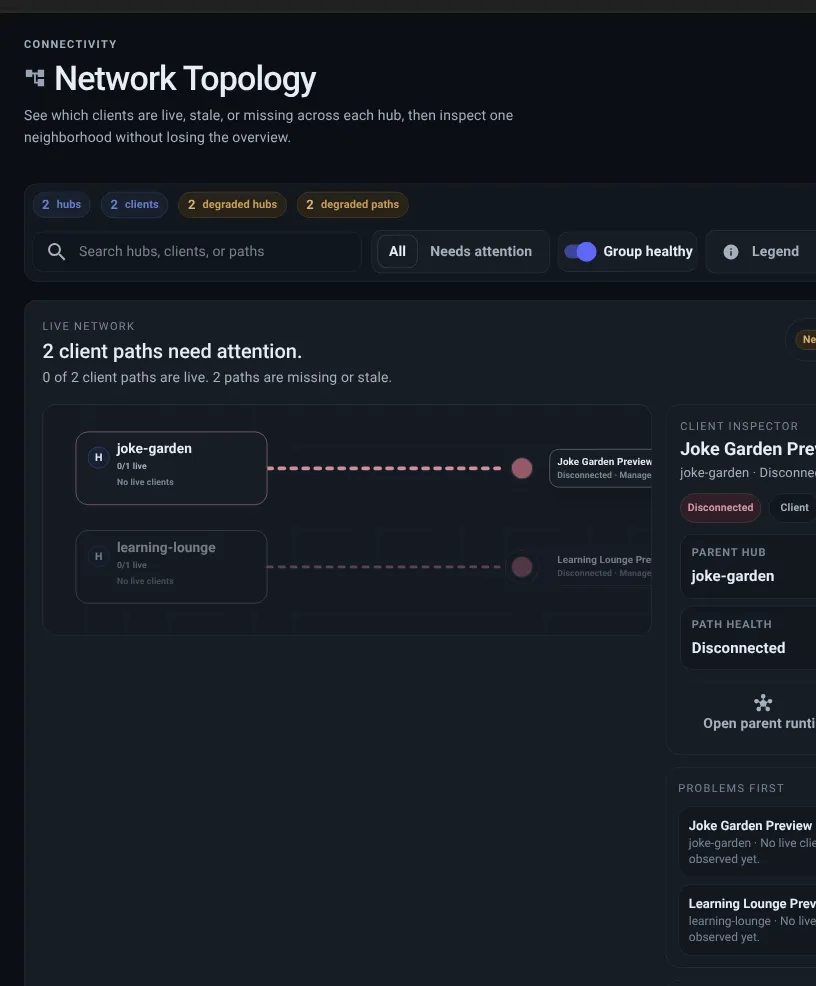
Live Map showing hubs, connected clients, stale clients, missing clients, filters, and a focused hub panel.
Live Map groups clients around each hub so stale, missing, and warning states are easier to spot.
Live Map stale client state showing one connected client, one stale client, and next checks for Clients and Permissions.
A stale state means Live Map can see the client record, but the latest live update is old. Refresh, then check Clients and Permissions.
flowchart LR
  Hub((Hub neighborhood))
  Hub --> Healthy[Connected client]
  Hub --> Stale[Stale client]
  Hub --> Missing[Missing client]
  Hub --> WarningNode[Warning]
  Hub --> Focus[Focus mode]
  Focus --> Details[Inspect detail]

  classDef hub fill:#171d25,stroke:#818dd1,color:#e8edf5,stroke-width:2px
  classDef healthy fill:#10251f,stroke:#2ea47f,color:#e8edf5,stroke-width:2px
  classDef warning fill:#251e14,stroke:#d19a45,color:#e8edf5,stroke-width:2px
  classDef muted fill:#161d27,stroke:#566171,color:#d4dbe6,stroke-width:2px
  classDef detail fill:#141d2c,stroke:#6170c0,color:#e8edf5,stroke-width:2px
  class Hub hub
  class Healthy healthy
  class Stale,WarningNode warning
  class Missing muted
  class Focus,Details detail

Live Map includes two main views:

Network map

A visual overview of hubs, connected clients, stale clients, and missing live updates.

Cluster cards

A compact list view when you need the same information in a denser format.

Healthy

The client has checked in recently and has no current warning.

Stale

The client exists, but its latest update is old.

Missing

The client exists, but no live update is available.

Warning

The connection has a warning that needs review.

Start with the summary bar before opening details.

Total hubs

Confirms how many hubs are shown in the current view.

Client health

Shows whether connected clients are healthy, stale, missing, or showing a warning.

Warnings

Highlights connections that need review.

Active filters

Explains why the map may show only part of your workspace.

Then scan for hubs with warnings or stale clients.

Focus mode is useful when one hub has many clients.

  1. Confirm healthy clients are visible when you need the full list.
  2. Check stale clients first; they usually indicate an app or device that stopped sending fresh activity.
  3. Look for missing clients when a client exists but no live update is available.
  4. Review warnings before treating the hub as ready.
  5. Use the open actions to jump to hub or client details when the map points to a specific item.

When something looks wrong in Live Map:

If the map is empty, first clear filters and refresh. Then confirm the hub exists, the client is active, and the client has a current connection file.

  1. Select the hub. Confirm the hub is ready and has the expected clients.
  2. Check the client state. Healthy means recent. Stale means the latest update is old. Missing means no live update is available.
  3. Open the client. Confirm the connection file, client type, and hub choice are correct.
  4. Open Permissions. Confirm the client is allowed to do the expected work.
  5. Return to Dashboard. Confirm the attention item clears or remains visible for follow-up.

Use the Live Map controls to:

Search

Search by hub or client when you know the name.

Filter

Narrow the map by state so attention items are easier to scan.

Hide healthy clients

Reduce noise when you only need stale, missing, or warning updates.

Refresh

Refresh the list and live state before acting on an old update.

Focus

Inspect one hub without losing the broader map context.

Client missing

Open Clients and confirm it is active, attached to the expected hub, and using the right connection file.

Client stale

Check whether the app or device has stopped sending fresh activity.

Hub has no clients

Create or attach a client, then check permissions and connection file placement.

Warning

Open the related hub or client details for the latest status.

Live Map looks right when:

  • the hub you expect is visible;
  • the client appears under the right hub;
  • filters are not hiding the item you are looking for;
  • healthy, stale, missing, and warning states match what you expect from the connected app or device;
  • Dashboard shows the same overall story.