
Permissions
Permissions decide what a client can and cannot do on a hub.
The hub answers where does the client connect? The client answers what is connecting? Permissions answer what is allowed?
Create permissions after the client exists and the hub is clear. Use Live Map later to confirm the connected client behaves as expected.
Start Here If
Section titled “Start Here If”- access is too wide or too narrow;
- a client sees permission denied;
- a client action is access blocked;
- a client can do too much or too little;
- a permission set is hard to review;
- you need to split broad access into smaller purpose-based rules.
At a Glance
Section titled “At a Glance”| Question | Simple answer |
|---|---|
| What are permissions? | Rules for what a client may do on a hub. |
| When do I create them? | After the client exists. |
| What should they include? | The hub, linked clients, allowed actions, blocked actions, and notes. |
| What is safest first? | Narrow access for one purpose. |
| What should be rare? | Everything access or full control. |
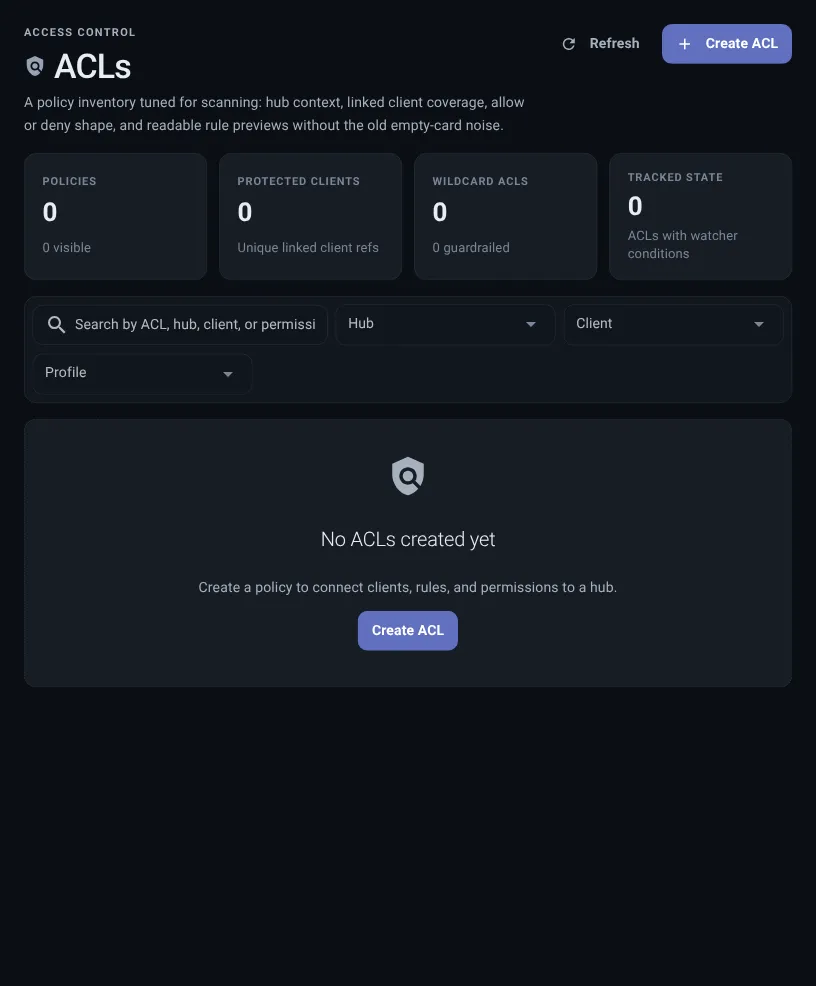
What Permissions Contain
Section titled “What Permissions Contain”Permissions usually include:
- a hub it belongs to;
- one or more clients;
- allowed actions;
- blocked actions;
- optional safety rules;
- a description for team context;
- notes that explain why the access exists.
Common Permission Styles
Section titled “Common Permission Styles”Specific permissions allow only named actions. Use these for most clients.
Safety rules keep permissions intentionally narrow and safer for public-facing clients.
Everything access is wide. Use it only when the client has a trusted purpose and the risk is understood.
How to Read Permissions
Section titled “How to Read Permissions”Read permissions from top to bottom:
- Hub: the place these permissions apply.
- Linked clients: the clients that receive these permissions.
- Allowed actions: what those clients can do.
- Blocked actions: what stays blocked.
- Notes: why these permissions exist.
If the client name and permissions name do not clearly explain the relationship, rename or describe them before adding more rules.
Create Permissions
Section titled “Create Permissions”Create permissions after the client exists. That makes the relationship easier to read.
- Open Permissions. Select Create.
- Choose a hub. Permissions always apply to one hub.
- Name the permissions. Use a purpose-based name, such as
frontdesk-questions-only. - Link clients. Select the clients that should receive this access.
- Choose the shape. Use narrow access for most clients.
- Review allowed and blocked actions. Allow only what is needed and block risky actions.
Before saving, read the permissions sentence in plain language:
These clients can do these actions on this hub, and these actions stay blocked.
If that sentence is hard to say, split the permissions or rename them before adding more connections.
Public Hub Safety Defaults
Section titled “Public Hub Safety Defaults”For public hub access, Thalovant favors narrow defaults:
- no wider message sending;
- no escalation, which means no higher-level requests;
- no propagation, which means no passing work along;
- no full-control access;
- normal question access only.
That keeps public clients useful while limiting accidental wide control.
Common Permission Shapes
Section titled “Common Permission Shapes”If access feels too wide, too narrow, or the client can do too much or too little, start by reading the permission shape before changing allowed actions.
If someone describes the problem as too much access, use this section before adding another blocked action.
If the visible message says permission denied or access blocked, compare the linked client, allowed actions, and blocked actions before changing the hub.
| Style | Use it when | Typical access |
|---|---|---|
| Question-only | A user-facing client should ask normal questions. | Questions and status, with wider controls blocked. |
| Observer | A client only needs health or status. | Read-only access. |
| Skill helper | A client helps Thalovant see available skills. | Skill sharing plus only the small reads it needs. |
| Temporary task | A trusted client performs one narrow job. | Specific actions with a clear description. |
Live Skill Suggestions
Section titled “Live Skill Suggestions”When a hub has a client sharing live skill information, the permissions builder can show available skills. This helps you block exact items without guessing names.
If live suggestions are not available yet, permissions still work. Start simple, then return later when suggestions appear.
Permissions Are Ready When
Section titled “Permissions Are Ready When”Permissions are ready when:
- the name explains the purpose;
- the linked clients all need the same kind of access;
- allowed actions are specific;
- wider controls are blocked unless there is a written reason;
- notes explain why the access exists;
- a teammate could read the permissions sentence without guessing.