

Hubs
Start here for hub visibility, address, health, or public listing questions.
Help and resources helps you choose the right page before opening a help request. Use this page when you are stuck, when search did not find the answer, or when you need to report a problem with useful context.
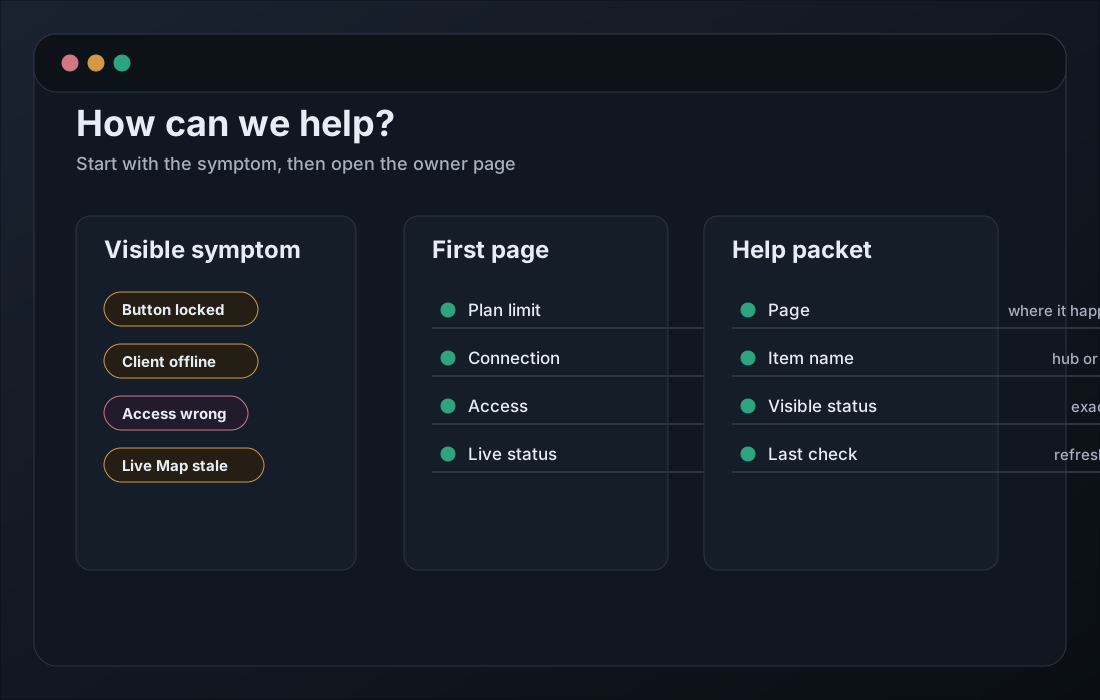
Good help requests start with context: the item name, the page, the visible status, and the last action you tried.
Use this page when:
| What you know | First route |
|---|---|
| Only the symptom | Decision Tree |
| Issue type is known | Common Issues |
| Product state needs a docs target | Product Help Links |
| You need to report it | Collect the help request packet on this page. |
Hubs
Start here for hub visibility, address, health, or public listing questions.
Skills
Start here for skill install, update, or settings questions.
Runtime
Start here for language, location, speech, blocked skills, or live skill status questions.
Clients
Start here for client connection files, live status, pause, or restore questions.
Permissions
Start here for allowed actions, blocked actions, and linked client questions.
Live Map
Start here for live connection, stale clients, and missing client questions.
Billing
Start here for limits, hub addresses, help options, and paid skill questions.
Profile
Start here for two-step sign-in, recovery codes, active browsers, and avatar questions.
If something looks wrong but you do not know whether it is setup, permissions, plan, or live status, start with Troubleshooting Decision Tree. It walks from symptom to the right page.
Open decision tree Open common issuesCheck these first:
If the issue still needs help, collect:
Page:Item name:Visible status:Last check:Expected result:What changed recently:Page: Item name: Visible status: Last check: Expected result: What changed recently:
This packet keeps support focused on the next check instead of re-discovering basic context.