

Try Your Skill in VS Code
The Thalovant Skills extension runs your skill beside its code and shows what it says, writes and puts on a screen as you edit.
Thalovant Skills is a VS Code extension for people who write skills. It runs your skill in a real OVOS core next to the code, with the skill’s own Python. You type what someone would say and see every answer the skill gives. When you save a file, the skill restarts with your change.
What You Need
Section titled “What You Need”| Needed | Version or form |
|---|---|
| Editor | VS Code 1.95 or newer, or an editor built on it that installs from Open VSX, such as VSCodium |
| Python | 3.11 or newer, the same one the skill’s tests use |
| A skill | A folder with a thalovant_skill_* package, as thalovant-skillkit new writes it |
You don’t need a hub, a speaker or an account. Everything runs on your computer. The extension can create the skill’s Python environment for you.
Install The Extension
Section titled “Install The Extension”In Extensions, search for Thalovant Skills and choose Install.
VS Code installs from the
Microsoft Marketplace.
The publisher is Thalovant.
From a terminal, run code --install-extension thalovant.thalovant-skills.
These editors install from
Open VSX.
From a terminal, VSCodium does the same with
codium --install-extension thalovant.thalovant-skills.
To install a specific release from its .vsix file:
-
Download
thalovant-skills-0.1.1.vsixfrom the Thalovant Skills releases. -
In VS Code, open Extensions, choose … at the top of the list, then Install from VSIX…, and pick the file. From a terminal, the same thing is
code --install-extension thalovant-skills-0.1.1.vsix.
Then open a folder that holds a skill. The Thalovant view appears in the activity bar, and the status bar shows the skill’s name.
Start Or Open A Skill
Section titled “Start Or Open A Skill”To start from nothing, run Thalovant: New Skill… from the Command Palette.
It asks what the skill is about and where it sits in the fallback ladder.
Then it writes the skill with thalovant-skillkit new, gives it its own
.venv with SkillKit and OVOScope, and runs its checks. Installing the OVOS
stack takes a minute or two the first time.
For a skill you already have, the extension picks its Python in this order:
- the
thalovant.pythonsetting; - a
.venvin the skill folder; - the interpreter the Python extension uses.
If that Python lacks thalovant-skillkit[testing], the simulator offers
Set up the environment. That installs the kit and the skill into the
skill’s .venv and changes nothing outside the skill folder.
Talk To Your Skill
Section titled “Talk To Your Skill”Click ▷ in the editor title, or press Ctrl+Alt+V (Cmd+Alt+V on a Mac). The simulator opens beside the code. Type a sentence and press Enter.
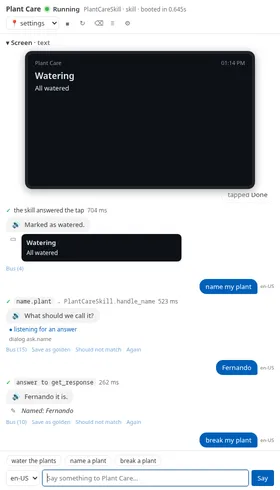
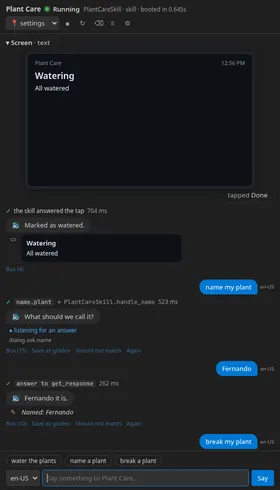
Each turn shows every way the skill answered:
| Mark | What it shows |
|---|---|
| 🔊 | What the speaker says. SSML expands the dialog’s SSML twin, if it has one. |
| ✎ | What an app or a screen writes, when the skill passes written= to speak_to. |
| ▭ | The card the reply carries. The newest card also appears on the simulated screen. |
| ✓ | The intent and handler that took the sentence, and how long the turn took. |
| ✗ | Another skill’s intent took it. |
| ∅ | Nobody answered: no intent matched and no fallback skill said yes. |
Under each turn, Log shows your skill’s log lines and everyone’s warnings, and Bus shows every bus message of the turn. When a handler raises, the turn shows the exception, its traceback and a link to the line that raised.
Tap A Card
Section titled “Tap A Card”The buttons on the simulated screen are live. A tap sends
thalovant.display.action to the skill, as a satellite does. The handler you
registered with add_display_action_handler answers, and its reply appears as
a new turn. See Show a card on a screen
for the card helpers.
Answer A Question
Section titled “Answer A Question”When the skill asks something with get_response, the turn ends at the
question and the input box says the skill is waiting. Type the answer: it goes
to the same handler, through converse, as it would on a hub.
Pick A Language And A Place
Section titled “Pick A Language And A Place”The language menu beside the input lists the skill’s locales. A sentence is
sent in the language you pick. The 📍 menu sends a city as the request’s
location, for skills that read location_of(message).
Save A Turn As A Test
Section titled “Save A Turn As A Test”Save as golden adds the sentence to
test/end2end/golden_utterances.jsonl, with the intent that took it.
Should not match adds it as a sentence the skill must leave alone. Both
appear at once in the Testing view.
Run Golden Utterances
Section titled “Run Golden Utterances”The Testing view lists every row of test/end2end/golden_utterances*.jsonl:
{"skill_id": "thalovant-skill-plant-care.thalovant", "utterance": "water the plants", "intent_label": "water.plants.intent", "lang": "en-US"}{"skill_id": "thalovant-skill-plant-care.thalovant", "utterance": "what time is it", "lang": "en-US", "negative": true}A row passes when its sentence reaches this skill, and the named intent when
intent_label is set. A row with "negative": true passes when the skill
leaves the sentence alone. A failing row says who took the sentence instead.
Each run starts a hub of its own, so a test that leaves a question open does
not reach the simulator’s conversation.
Let The Editor Read The Locale Tree
Section titled “Let The Editor Read The Locale Tree”Inside the calls that name a locale resource, the editor knows the skill’s
files. The calls are speak_dialog, dialog, get_response,
mentions(utterance, "…"), @intent_handler("….intent") and
display.layout_file(self, "…"):
| You do | You get |
|---|---|
| Type inside the quotes | The skill’s dialogs, vocabulary, intents or layouts, with the locales that lack each one |
| Hover a name | Each locale’s lines, and which locales are missing the file |
| Go to Definition | The file, source locale first |
| Name something no locale has | A warning on the name |
Above each intent handler and each line of an .intent file, a lens offers
one of the intent’s sentences. Click it to say that sentence in the simulator.
Check It As You Save
Section titled “Check It As You Save”When you save, the extension runs thalovant-skillkit check and puts each
problem in the Problems panel, on the file and line it names. Problems include
a missing translation, placeholders that differ between languages, and a pipe
outside a group. Thalovant: Check the Skill Against the Fleet compares
your intent sentences with every other skill’s, the same comparison as
Check It describes.
What The Simulator Does Not Show
Section titled “What The Simulator Does Not Show”The simulator routes a sentence the way a paired hub does: stop, converse,
Padatious, common query and the low fallback tier. Paired hubs do not run
Adapt, so when your skill registers Adapt intents the simulator names the ones
a hub will never answer. Set thalovant.simulator.pipeline to hub-m2v to add
the hub’s model2vec stages on Thalovant’s own encoder, at the cost of a
download the first time, or to unpaired for a runtime that runs Adapt.
A layout card is drawn by the satellite’s own widget library. The simulator
shows what a screen that cannot draw the layout shows: the card’s body, and
the data bound to it.
An editor panel has no microphone, so you talk by typing. Replies can be read
aloud with thalovant.simulator.speech set to system, where your system
offers speech synthesis.
Running a skill runs its code. The simulator, the checks and the tests need a trusted workspace. Completion, hover and highlighting work in restricted mode.
Settings
Section titled “Settings”| Setting | Default | What it changes |
|---|---|---|
thalovant.python |
empty | The Python that runs the skill. ${skillFolder} and ${workspaceFolder} are expanded. |
thalovant.simulator.pipeline |
hub |
hub-m2v adds the hub’s model2vec stages; unpaired adds Adapt. |
thalovant.simulator.reloadOnSave |
true |
Restart the skill when one of its files is saved. |
thalovant.simulator.languages |
[] |
The languages the simulated hub loads; empty means locale/supported.json. |
thalovant.simulator.location |
null |
The location sent with every sentence. |
thalovant.simulator.skillSettings |
{} |
The settings the skill starts with, such as an endpoint or a key. |
thalovant.simulator.speech |
off |
system reads replies aloud. |
thalovant.check.onSave |
true |
Run thalovant-skillkit check when a file is saved. |
When It Does Not Start
Section titled “When It Does Not Start”| The simulator says | What it usually means |
|---|---|
| thalovant-skillkit is not installed | The chosen Python has no SkillKit. Choose Set up the environment, or Thalovant: Choose the Skill’s Python…. |
| … is Python 3.10; SkillKit needs 3.11 or newer | Point thalovant.python at a newer Python, or let Set up the environment build a .venv with one. |
| skill did not load: … | OVOS refused the skill, and the text after the colon is its reason. Check the skill usually shows the file and line. |
| No module named … | The skill imports a package its environment lacks. Set up the environment installs the skill’s own dependencies. |
| A turn ends with “No end to this turn” | A handler is blocked, often on a network call or a get_response nobody answered. |
The skill’s full log is in Thalovant: Show the Skill Log.